How to Set Up Your Telegram Account
Categories:
To join Bangladesh Hindu Samaj, you must have a Telegram account. All member communication happens only through Telegram. We all work remotely. Wherever you live, you can still serve your home district. All weekly meetings will happen through Telegram group video or audio calls. Face-to-face meetings will take place on the first Friday of every month or during special events.
For your safety, never share your phone number with strangers or on social
media. Keep your phone number hidden on Telegram. After creating your Telegram
account, set a username. Add _bdh at the end of your username.
For example, if your name is Pranab Kumar Sen, choose: pranab_bdh.
If not available, try pranabkumar_bdh, pranab1_bdh, or pranab2_bdh.
What is Telegram?
Telegram is a messaging app focused on speed and security. It is fast, simple, and free. You can use Telegram on all your devices at the same time. Your messages sync easily across your phone, tablet, and computer. Telegram is one of the top 5 most downloaded apps in the world with over 950 million active users.
You can send any type of message, photo, video, or file (doc, zip, mp3, etc). You can also create groups with up to 200,000 members or channels with unlimited audiences. You can message phone contacts or search by username. Telegram works like a combined SMS and email system, perfect for both personal and business communication.
How is Telegram different from WhatsApp?
Unlike WhatsApp, Telegram is a cloud-based messenger with continuous syncing. This lets you access your messages on many devices at once, including tablets and computers. You can share photos, videos, and up to 2 GB files easily.
Telegram takes less than 100 MB on your device. You can keep all media in the cloud. Just clear the cache when you need storage.
Telegram is faster and more secure because of its multi-data-center design and encryption. Personal messaging is free and will always remain free — with no ads and no subscription fees.
Which devices support Telegram?
You can use Telegram on smartphones, tablets, and computers. There are apps for iOS 11+, Android 6.0+, a native macOS app, and a universal desktop app for Windows, macOS, and Linux. You can also use Telegram Web for quick access.
How to Install Telegram?
Install from Google Play Store (Android)
Download Telegram from Google Play:
https://telegram.org/dl/android
Install from Apple App Store (iPhone)
Download Telegram from the Apple App Store:
https://telegram.org/dl/ios
Direct download (Android Telegram APK)
You can directly download Telegram for Android from:
https://telegram.org/dl/android/apk
This version has fewer restrictions and updates automatically from telegram.org.
This video link shows how to install Telegram on Android:
https://telegram.org/android
How to install the Telegram APK manually?
Download the latest Telegram APK from:
https://telegram.org/dl/android/apk
When installing APK from outside the Play Store, you must allow “Install Unknown Apps” depending on your phone model. See examples below:
Google Pixel:
Settings > Apps and notifications > Advanced > Special app access > Install
unknown apps > Select your browser > Allow from this source
Huawei (Android 8 or older):
Settings > Security & privacy > More > Install unknown apps > Select browser >
Allow app installs
Huawei (Android 10+):
Settings > Security > More settings > Install apps from external sources >
Select browser > Allow app installs
Motorola:
Settings > Apps & notifications > Select browser > Install unknown apps > Allow
from this source
Oppo:
Settings > Additional settings > Safety & Privacy > Install Apps from Unknown
Source > OK
OnePlus:
Settings > Apps & notifications > Special app access > Install unknown apps >
Select browser > Allow from this source
Sony:
Settings > Apps & notifications > Special app access > Install unknown apps >
Select browser > Allow from this source
Samsung (Android 8 or older):
Settings > Lock screen and security > Unknown sources > OK
Samsung (Android 10+):
Settings > Apps > Special access > Install unknown apps > Select browser > Allow
from this source
Xiaomi (Android 8 or older):
Settings > Additional settings > Privacy > Unknown sources > OK
Xiaomi (Android 10+):
Settings > Privacy protection > Special permissions > Install unknown apps >
Select browser > Allow from this source
How to Set Up a Telegram Account
Create a Telegram Account on Android
Step 1: Open the Telegram app
Find the Telegram icon on your phone and tap it.

Step 2: Tap “Start Messaging”
This begins the account creation process.

Step 3: Choose your country, enter your mobile number, then tap the arrow
Select your country, enter your phone number, and tap the arrow to proceed.

Step 4: Wait for the call
A missed call will verify your number.

Step 5: Enter your name and tap the arrow
Enter your first and last name. Tap the arrow to continue.

Step 6: Your account is now ready
You can now use voice calls, video calls, messaging, and many more features.

Create a Telegram Account on iPhone
Step 1: Open Telegram
Find and open the Telegram app on your device.

Step 2: Tap “Start Messaging”
Tap the button to move to the next step.

Step 3: Select country, enter number, tap “Continue”
Choose your country and enter your phone number. Then tap “Continue”.

Step 4: Enter the verification code
A small OTP code will be sent to your phone or Telegram. Enter the code.

Step 5: Telegram account created
Your Telegram account is now active. You can adjust settings anytime.

How to Set Up a Username
Create Your Telegram Username – Android
To link your Telegram account with our membership system, you must share your Telegram username. Follow these steps to find or create it:
- Open Telegram.
- Open the menu (Hamburger Menu).
- Select “Settings”.

If you already have a username, it will appear like this:

To add or edit your username, tap the username area and enter a new one.

Please remember this username as you will need to provide it later.
Telegram Username – iOS
Make sure Telegram is installed on your device.
To link your account to our membership details, you must know your Telegram username. Follow the steps below:
Load the Telegram app:
- Tap the Settings icon (marked as 1 in green).

- Your username appears under your icon (marked in green).
- To edit or create a username, tap Edit (marked as 2 in green).
If you choose to edit, you will see a new screen like this:

Remember your username carefully. You will need it later.
Hide Your Phone Number on Telegram
Do not share your phone number with strangers or on social media. Keep it hidden on Telegram. Follow the steps below:
- Open Telegram.
- Tap the Hamburger Menu and select “Settings”.
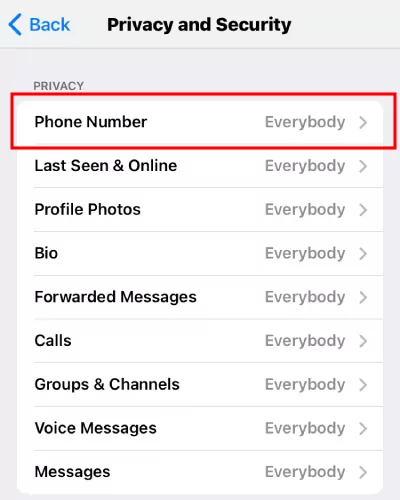
- Go to Privacy and Security → Phone Number.
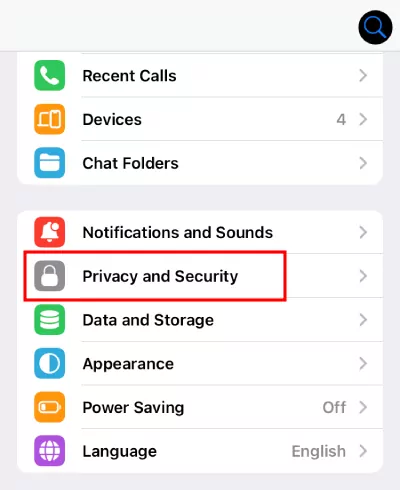
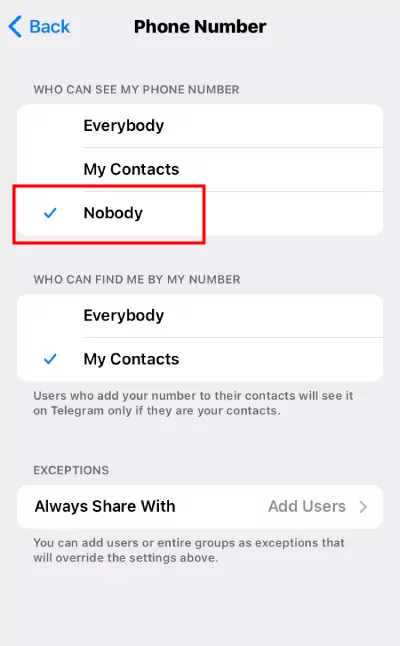
- Under “Who can see my phone number”, choose:
- My contacts — Only saved contacts can see your number.
- Nobody — Hide your number from everyone.
- Everybody — Let everyone see your number.
If you select “Nobody”, you can also set “Who can find you by number” to “Everybody” or “Your contacts”.
For maximum safety on Telegram:
- Use Secret Chats for end-to-end encrypted messages.
- Turn off “People Nearby”.
- Use a VPN to hide your IP address.
Telegram Basics
Q: Who can I message?
You can message Telegram users saved in your phone contacts. You can also search for users by username — phone number is not required.
Q: Who can contact me?
Anyone who knows your phone number, or anyone you message first, can contact you.
If they don’t know your number, they can still find you if:
- You are in the same group.
- You have a public username (they can search for you).
- You enabled “People Nearby” (off by default).
Q: How do I know who in my contacts uses Telegram?
Users with Telegram accounts appear at the top of your contact list with their profile photos.
Q: How do I invite friends?
iOS:
Invites are sent as SMS messages. Carrier charges may apply. You can also share
the download link through any other platform — email, Facebook, WhatsApp,
Telegram, etc.
Link: https://telegram.org/dl/
Android:
Open the app menu (swipe right) → Select “Invite Friends”. Choose how you want
to send the invitation.
You can also send your t.me link to friends so they can find you without knowing your phone number.
Q: What do the ticks mean?
- One tick — Message delivered to Telegram cloud; your friend is notified.
- Two ticks — Message read by your friend.
There is no “Delivered to device” status because Telegram works across many devices.
Q: Can I hide my “Last Seen” time?
Yes. You can control who sees this in Privacy and Security settings.
People who cannot see your exact time will see an approximate range:
- Recently — within 1 second to 2–3 days
- Within a week — 2–7 days
- Within a month — 6–30 days
- Long time ago — more than a month (also shown for blocked users)
Q: Who can see me “Online”?
Same rules as Last Seen. Only people who can see your Last Seen can see your Online status.
Some exceptions apply when it is obvious that you are active. For example…