In this section, we explore the technologies that support and enhance our work. From tools and platforms to workflows and best practices, we share practical insights to help you understand the systems behind our projects. This space will keep you updated on the tech we use, why we use it, and how it strengthens our overall mission.
This is the multi-page printable view of this section. Click here to print.
Technology
- 1: How to Set Up Your Telegram Account
- 2: How to Create a Free VPN Account – A Complete Guide
- 3: False Blasphemy Traps in Bangladesh
1 - How to Set Up Your Telegram Account
To become a member of Bangladesh Hindu Samaj, you must have a Telegram account. All internal communication happens only on Telegram. We work in a remote-work mode. No matter where you live, you can work for your home district from any distance.
To join Bangladesh Hindu Samaj, you must have a Telegram account. All member communication happens only through Telegram. We all work remotely. Wherever you live, you can still serve your home district. All weekly meetings will happen through Telegram group video or audio calls. Face-to-face meetings will take place on the first Friday of every month or during special events.
For your safety, never share your phone number with strangers or on social
media. Keep your phone number hidden on Telegram. After creating your Telegram
account, set a username. Add _bdh at the end of your username.
For example, if your name is Pranab Kumar Sen, choose: pranab_bdh.
If not available, try pranabkumar_bdh, pranab1_bdh, or pranab2_bdh.
What is Telegram?
Telegram is a messaging app focused on speed and security. It is fast, simple, and free. You can use Telegram on all your devices at the same time. Your messages sync easily across your phone, tablet, and computer. Telegram is one of the top 5 most downloaded apps in the world with over 950 million active users.
You can send any type of message, photo, video, or file (doc, zip, mp3, etc). You can also create groups with up to 200,000 members or channels with unlimited audiences. You can message phone contacts or search by username. Telegram works like a combined SMS and email system, perfect for both personal and business communication.
How is Telegram different from WhatsApp?
Unlike WhatsApp, Telegram is a cloud-based messenger with continuous syncing. This lets you access your messages on many devices at once, including tablets and computers. You can share photos, videos, and up to 2 GB files easily.
Telegram takes less than 100 MB on your device. You can keep all media in the cloud. Just clear the cache when you need storage.
Telegram is faster and more secure because of its multi-data-center design and encryption. Personal messaging is free and will always remain free — with no ads and no subscription fees.
Which devices support Telegram?
You can use Telegram on smartphones, tablets, and computers. There are apps for iOS 11+, Android 6.0+, a native macOS app, and a universal desktop app for Windows, macOS, and Linux. You can also use Telegram Web for quick access.
How to Install Telegram?
Install from Google Play Store (Android)
Download Telegram from Google Play:
https://telegram.org/dl/android
Install from Apple App Store (iPhone)
Download Telegram from the Apple App Store:
https://telegram.org/dl/ios
Direct download (Android Telegram APK)
You can directly download Telegram for Android from:
https://telegram.org/dl/android/apk
This version has fewer restrictions and updates automatically from telegram.org.
This video link shows how to install Telegram on Android:
https://telegram.org/android
How to install the Telegram APK manually?
Download the latest Telegram APK from:
https://telegram.org/dl/android/apk
When installing APK from outside the Play Store, you must allow “Install Unknown Apps” depending on your phone model. See examples below:
Google Pixel:
Settings > Apps and notifications > Advanced > Special app access > Install
unknown apps > Select your browser > Allow from this source
Huawei (Android 8 or older):
Settings > Security & privacy > More > Install unknown apps > Select browser >
Allow app installs
Huawei (Android 10+):
Settings > Security > More settings > Install apps from external sources >
Select browser > Allow app installs
Motorola:
Settings > Apps & notifications > Select browser > Install unknown apps > Allow
from this source
Oppo:
Settings > Additional settings > Safety & Privacy > Install Apps from Unknown
Source > OK
OnePlus:
Settings > Apps & notifications > Special app access > Install unknown apps >
Select browser > Allow from this source
Sony:
Settings > Apps & notifications > Special app access > Install unknown apps >
Select browser > Allow from this source
Samsung (Android 8 or older):
Settings > Lock screen and security > Unknown sources > OK
Samsung (Android 10+):
Settings > Apps > Special access > Install unknown apps > Select browser > Allow
from this source
Xiaomi (Android 8 or older):
Settings > Additional settings > Privacy > Unknown sources > OK
Xiaomi (Android 10+):
Settings > Privacy protection > Special permissions > Install unknown apps >
Select browser > Allow from this source
How to Set Up a Telegram Account
Create a Telegram Account on Android
Step 1: Open the Telegram app
Find the Telegram icon on your phone and tap it.

Step 2: Tap “Start Messaging”
This begins the account creation process.

Step 3: Choose your country, enter your mobile number, then tap the arrow
Select your country, enter your phone number, and tap the arrow to proceed.

Step 4: Wait for the call
A missed call will verify your number.

Step 5: Enter your name and tap the arrow
Enter your first and last name. Tap the arrow to continue.

Step 6: Your account is now ready
You can now use voice calls, video calls, messaging, and many more features.

Create a Telegram Account on iPhone
Step 1: Open Telegram
Find and open the Telegram app on your device.

Step 2: Tap “Start Messaging”
Tap the button to move to the next step.

Step 3: Select country, enter number, tap “Continue”
Choose your country and enter your phone number. Then tap “Continue”.

Step 4: Enter the verification code
A small OTP code will be sent to your phone or Telegram. Enter the code.

Step 5: Telegram account created
Your Telegram account is now active. You can adjust settings anytime.

How to Set Up a Username
Create Your Telegram Username – Android
To link your Telegram account with our membership system, you must share your Telegram username. Follow these steps to find or create it:
- Open Telegram.
- Open the menu (Hamburger Menu).
- Select “Settings”.

If you already have a username, it will appear like this:

To add or edit your username, tap the username area and enter a new one.

Please remember this username as you will need to provide it later.
Telegram Username – iOS
Make sure Telegram is installed on your device.
To link your account to our membership details, you must know your Telegram username. Follow the steps below:
Load the Telegram app:
- Tap the Settings icon (marked as 1 in green).

- Your username appears under your icon (marked in green).
- To edit or create a username, tap Edit (marked as 2 in green).
If you choose to edit, you will see a new screen like this:

Remember your username carefully. You will need it later.
Hide Your Phone Number on Telegram
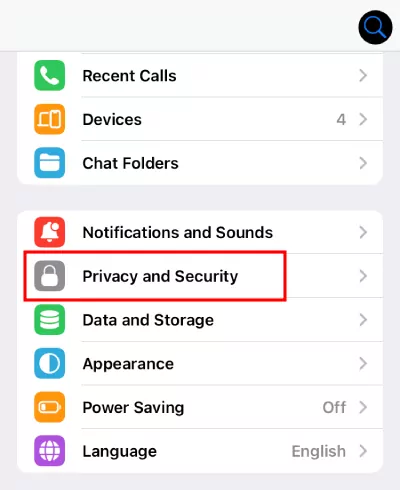
Do not share your phone number with strangers or on social media. Keep it hidden on Telegram. Follow the steps below:
- Open Telegram.
- Tap the Hamburger Menu and select “Settings”.
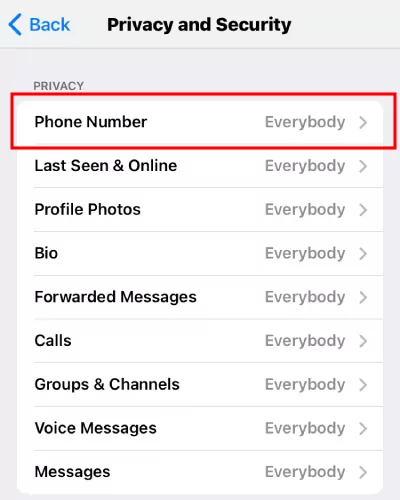
- Go to Privacy and Security → Phone Number.
- Under “Who can see my phone number”, choose:
- My contacts — Only saved contacts can see your number.
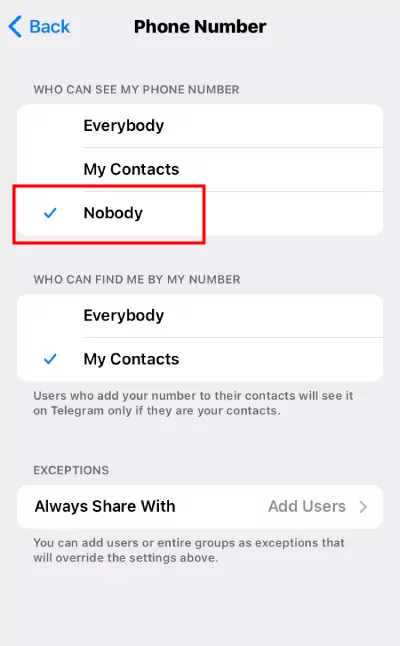
- Nobody — Hide your number from everyone.
- Everybody — Let everyone see your number.
If you select “Nobody”, you can also set “Who can find you by number” to “Everybody” or “Your contacts”.
For maximum safety on Telegram:
- Use Secret Chats for end-to-end encrypted messages.
- Turn off “People Nearby”.
- Use a VPN to hide your IP address.
Telegram Basics
Q: Who can I message?
You can message Telegram users saved in your phone contacts. You can also search for users by username — phone number is not required.
Q: Who can contact me?
Anyone who knows your phone number, or anyone you message first, can contact you.
If they don’t know your number, they can still find you if:
- You are in the same group.
- You have a public username (they can search for you).
- You enabled “People Nearby” (off by default).
Q: How do I know who in my contacts uses Telegram?
Users with Telegram accounts appear at the top of your contact list with their profile photos.
Q: How do I invite friends?
iOS:
Invites are sent as SMS messages. Carrier charges may apply. You can also share
the download link through any other platform — email, Facebook, WhatsApp,
Telegram, etc.
Link: https://telegram.org/dl/
Android:
Open the app menu (swipe right) → Select “Invite Friends”. Choose how you want
to send the invitation.
You can also send your t.me link to friends so they can find you without knowing your phone number.
Q: What do the ticks mean?
- One tick — Message delivered to Telegram cloud; your friend is notified.
- Two ticks — Message read by your friend.
There is no “Delivered to device” status because Telegram works across many devices.
Q: Can I hide my “Last Seen” time?
Yes. You can control who sees this in Privacy and Security settings.
People who cannot see your exact time will see an approximate range:
- Recently — within 1 second to 2–3 days
- Within a week — 2–7 days
- Within a month — 6–30 days
- Long time ago — more than a month (also shown for blocked users)
Q: Who can see me “Online”?
Same rules as Last Seen. Only people who can see your Last Seen can see your Online status.
Some exceptions apply when it is obvious that you are active. For example…
2 - How to Create a Free VPN Account – A Complete Guide
We request all our members to learn how to use VPN properly and use it when needed. If authorities ever block our site, Telegram, Facebook, or WhatsApp, you will be able to access them easily through VPN.
Why You Should Use a VPN
We request all our members to learn how to use a VPN properly and be capable of using it when needed. If authorities ever block our site, Telegram, Facebook, or WhatsApp, a VPN will help you access them without issues. So install the ProtonVPN app on your phone now. Is VPN legal in Bangladesh? Yes, VPN is legal in Bangladesh. Encrypt your data, hide your IP, and browse freely. But remember, with or without VPN, we never support breaking laws or licenses.
A Virtual Private Network (VPN) is a cybersecurity tool that encrypts your internet connection and protects your online privacy. It creates an encrypted tunnel between your device and the server, hiding your IP address and securing your data from unwanted tracking. The purpose is simple — enhance your online privacy and safety, protect your device from online threats, and allow uncensored browsing. It hides your real location and gives you privacy, especially while using public Wi-Fi.
Why Use VPN in Bangladesh
The Bangladesh Telecommunication Regulatory Commission (BTRC) often censors the internet, especially political content and social media posts. Recently, BTRC has begun a large-scale surveillance program and proposed new laws that might require storing and collecting user internet data. This is why using a VPN helps you bypass online censorship and monitoring.
Create a Free ProtonVPN Account
If you want to create a free VPN account, follow these simple steps:
Step 1: Go to the Proton VPN Website
Open this link in your browser: protonvpn.com/free-vpn and click “Get Proton VPN Free.” You can also click “Create account” from the homepage.

Step 2: Go to the Signup Page
After clicking “Get Proton VPN Free,” you will be redirected to the “Create your Proton Account” page. If coming from the homepage, click “Get Proton Free.”

Step 3: Provide a Recovery Email
A recovery email helps reset your password if you forget it. Enter your email and click “Start using Proton VPN.”

Step 4: Set Your Password
You may accept the system-generated password by clicking “Continue with this password.”
Or you can click “Choose my own password” and set your own. Confirm the password and click “Set new password.”


Step 5: Proton VPN Free Plan is Ready
You are now ready to use Proton VPN Free. You will be redirected to the Downloads page to download the client for your device.

What Do You Get in the Free Plan?
With the free plan, you can connect to servers in five countries: Netherlands, Japan, Romania, Poland, and the USA. Free users can connect only one device at a time.
Start using Proton VPN Free today and browse the internet safely!
How to Use the Proton VPN Android App
Step 1: Download and Log In
Download and install the Proton VPN Android app from the Play Store. The open-source version is also available on F-Droid or as an APK from GitHub. After installation, log in with your Proton VPN username and password.
Download Proton VPN for Android
Step 2: Connect to a Server
You can auto-connect to the fastest server for your location or choose any available server on your plan.
Your data is encrypted between your device and the VPN server, meaning:
- Your ISP cannot monitor your activities.
- Websites see the VPN server’s IP, not yours.
While connected, check your IP to confirm the VPN is active.
How to Use Proton VPN on iPhone and iPad
Step 1: Download and Log In
Download Proton VPN from the App Store and install it on your iPhone or iPad. Open the app and log in with your Proton VPN username and password.
Step 2: Connect to a Server
You can auto-connect to the fastest server or choose any server available in your plan.
Your data is encrypted between your device and the VPN server, meaning:
- Your ISP cannot track your activity.
- Websites see only the VPN server’s IP.
While connected, check your IP to confirm the switch.
What Is a VPN Ban?
A VPN ban is when governments, organizations, or ISPs restrict VPN usage. They may block VPNs to stop users from bypassing censorship or hiding activity. VPN traffic is identified and blocked using detection technologies, making VPN access limited or fully restricted.
Can VPN Be Blocked?
Yes, VPNs can be blocked. Governments and organizations may block VPNs to impose censorship or protect internal networks.
How to Know If Your VPN Is Blocked?
You may face the following issues:
- Connection failure
- Unable to connect to any server
- Websites not loading
- IP remains unchanged even after connecting
- VPN stops working on specific networks
How to Bypass a VPN Block?
If you wish to bypass restrictions, ensure it is legally allowed and follows local laws and network policies. Otherwise, it may cause legal issues. If the use is not illegal, you may try:
- Changing VPN protocol
- Switching to mobile data
How Are VPNs Blocked?
Governments or companies use several methods to block VPNs. They may collect the list of IPs used by a VPN service and block them. Firewalls may also be configured to block VPN ports. If you try connecting through a blocked port, the request is rejected.
They also use Deep Packet Inspection (DPI) to analyze data between your device and the server. DPI detects VPN-specific patterns and signatures. Once detected, the VPN connection is blocked.
Date: 17.08.2024
3 - False Blasphemy Traps in Bangladesh
In recent years, some people in Bangladesh have faced serious trouble due to false blasphemy accusations. These accusations can spread fear, damage lives, and break community trust. Many ordinary people do not understand how such situations begin or why they spread so fast. Learning about this topic helps communities understand risks, recognize patterns, and stay aware of how everyday actions—especially online—can be misused by others.
False Blasphemy Traps in Bangladesh: How Innocent Hindus Are Targeted—and How to Stay Safe
Introduction: Why This Topic Matters
In recent years, some people in Bangladesh have faced serious trouble due to false blasphemy accusations. These accusations can spread fear, damage lives, and break community trust. Many ordinary people do not understand how such situations begin or why they spread so fast. Learning about this topic helps communities understand risks, recognize patterns, and stay aware of how everyday actions—especially online—can be misused by others.
Background: Why False Blasphemy Cases Happen
False blasphemy cases do not usually happen by accident. They are often planned carefully for personal gain.
In simple terms, a false blasphemy case means someone is wrongly accused of insulting religion, even though they did not do so. These accusations are sometimes created to harm a person or family.
Why such accusations are created
- Some groups use false accusations to take over land or property.
- Business rivals may try to remove someone from competition.
- A person may be targeted at work to push them out or isolate them.
- Families may be forced to leave their homes due to fear.
How these accusations are spread
- Fake social media posts are created in someone’s name.
- Images or messages are edited to look offensive.
- Old or hacked accounts are used to post false content.
What often follows
- Large groups gather quickly without checking facts.
- Pressure is created by powerful or organized groups.
- Victims often stay silent due to fear of harm.
Understanding this background helps people see that these cases are often about power and control, not religion.
Common Methods Used to Trap Innocent People
False accusations often follow similar patterns, especially online.
How people are targeted
- A social media account is created or hacked using the victim’s name.
- False or offensive content is posted and blamed on the victim.
- People are provoked into emotional replies that are later misused.
- Fake profiles with familiar names are added to friend lists.
- Old or forgotten accounts are taken over because they are not protected.
These methods work because many people trust what they see online without checking the source.
Understanding Commonly Suggested Safety Measures
Many community discussions focus on digital safety. These points are often shared to explain how online activity can affect real life.
Social media hygiene
This refers to basic care of online accounts.
- Strong passwords reduce the chance of account misuse.
- Extra login steps help confirm the real account owner.
- Checking login activity helps notice unusual access early.
Privacy controls
Privacy settings decide who can see or share posts.
- Limiting visibility reduces misuse by strangers.
- Controlling comments and sharing reduces misinterpretation.
- Reviewing tagged posts avoids unwanted public display.
Account management
Inactive or forgotten accounts are often misused.
- Recovery keeps control with the original owner.
- Deletion removes unused accounts from risk.
- Searching one’s name helps notice fake profiles.
Online behaviour
Online conversations can be misunderstood.
- Neutral language reduces the chance of conflict.
- Saving suspicious messages helps document events.
- Informing trusted people spreads awareness early.
These practices are discussed because online actions often have offline consequences.
Understanding High-Risk Online Mistakes
Certain online actions are often linked to higher risk in tense environments.
Online interactions
- Religious or political discussions can be misquoted.
- Emotional replies are easier to misuse than calm silence.
Friend requests
- Some fake profiles use familiar names or photos.
- New accounts with little activity are harder to verify.
Posting habits
- Public posts reach unknown audiences.
- Jokes, symbols, or trending topics can be misunderstood.
Multiple accounts
- Extra or forgotten accounts are easier to hijack.
- Each unused account increases risk exposure.
Understanding these risks helps people see how small actions can lead to serious outcomes.
Community-Level Awareness
Safety is not only individual. It also involves the wider community.
- Trusted offline relationships help verify information.
- Sharing knowledge builds collective awareness.
- Clear records of land, work, and identity reduce disputes.
- Document copies help establish facts during conflict.
When communities are informed, false stories lose power.
When a Threat or Accusation Appears
False accusations often spread quickly and emotionally.
- Public reactions can increase tension.
- Digital records help clarify what actually happened.
- Family and community elders often provide guidance.
- Reduced online activity lowers immediate exposure.
Understanding these responses helps people remain calm during stressful moments.
Conclusion: The Value of Awareness
False blasphemy traps rely on fear, confusion, and lack of information. Learning how these situations develop helps communities stay alert and informed. Awareness does not remove risk, but it helps people recognize patterns early and understand the importance of careful digital and social behavior. Knowledge strengthens communities by replacing fear with understanding.
Step-by-Step Awareness: Understanding Safety Settings on Popular Social Media Platforms
Introduction
Many false accusations and misunderstandings today begin on social media. People often do not realize that small settings inside apps like Facebook, Instagram, YouTube, or WhatsApp can decide who sees their content and how it can be used. This section explains, in very simple language, how these platforms work and why people talk about setting them carefully. The purpose is to help readers understand what these settings mean and how online activity can affect real life.
Facebook: Understanding Basic Account Safety and Visibility
What Facebook Is in Simple Terms
Facebook is a place where people share thoughts, photos, and messages. What many do not realize is that Facebook is also public by default unless settings are changed.
Why Facebook Settings Matter
Anything visible to “Public” can be seen by strangers, saved, edited, or shared outside Facebook. This is why many problems start here.
Key Areas People Talk About
Profile and Posts Visibility
Facebook allows posts to be seen by:
- Everyone (Public)
- Only friends
Public posts can spread very fast without control.
Friends List Awareness
- Anyone on a friends list can see personal posts.
- Fake profiles sometimes look real and friendly.
Old Posts and Tags
- Old posts may still be visible.
- Others can tag a person in posts or photos.
Why This Affects Daily Life
A single misunderstood post or tag can be copied and shown outside context. Many people face trouble because they forgot what was posted years ago.
Instagram: Understanding Photos, Stories, and Followers
What Instagram Is
Instagram mainly shares photos, short videos, and stories. Many users think it is harmless because it feels casual.
Why Instagram Can Create Risk
Images and short text are easy to misunderstand. Screenshots can be taken silently.
Important Things People Should Understand
Public vs Private Accounts
- Public accounts can be viewed by anyone.
- Private accounts limit viewing to approved followers.
Followers and Messages
- Anyone can send message requests.
- Fake profiles often follow first, then provoke conversations.
Stories and Reels
- Stories disappear visually but screenshots remain.
- Reels can reach unknown viewers if public.
Community Impact
A single image or caption, when taken out of context, can create serious misunderstanding beyond Instagram.
YouTube: Understanding Comments and Channels
What YouTube Is
YouTube is mainly for watching and posting videos. Even people who do not upload videos often comment.
Why Comments Matter
Comments are public and searchable. Even old comments can resurface later.
Areas Often Overlooked
Commenting on Videos
- Comments stay visible for years.
- Arguments in comment sections are often recorded by others.
Channel Activity
- Even an inactive channel shows comment history.
- Profile names and photos are visible publicly.
Why Average Users Should Care
Many people forget what they commented on months or years ago. Screenshots of comments can be misused later.
WhatsApp: Understanding Groups and Messages
What WhatsApp Is
WhatsApp is used for private messages and group chats. Many people feel it is fully private, but this is not always true.
How WhatsApp Content Spreads
- Messages can be forwarded.
- Screenshots can be taken.
- Group messages reach many people quickly.
Important Group-Related Points
Group Membership
- Anyone in a group can save messages.
- Not all group members are personally known.
Group Discussions
- Heated discussions often happen in groups.
- Messages sent in emotion are hard to control later.
Why This Matters in Daily Life
Many misunderstandings begin inside WhatsApp groups and later appear outside the group without explanation.
General Understanding Across All Platforms
One Common Reality
- Online content does not disappear easily.
- Even deleted content may already be saved by someone else.
Why People Talk About Digital Caution
- Online words can be separated from context.
- Images and text can be edited.
- Silence or limited sharing reduces misunderstanding.
How Awareness Helps
- People understand how platforms work.
- Communities learn why small actions matter.
- Fear reduces when knowledge increases.
Conclusion: Learning Before Reacting
Social media platforms are tools. They are not good or bad by themselves. Problems arise when people do not understand how visible their actions are. Learning how Facebook, Instagram, YouTube, and WhatsApp function helps people stay informed and calm. Awareness does not stop all risks, but it helps people recognize situations early and understand why careful online behavior is often discussed in community safety conversations.
Immediate Check: Reviewing and Securing Your Existing Social Media Profiles
Why This Immediate Check Is Important
Many people face problems not because of new posts, but because of old posts, forgotten settings, or unused accounts. Content shared years ago, or posted by someone else and linked to your name, can still be seen today. That is why it is important to check profiles immediately, even if you are not active online.
This section explains, in very simple language, what people should look for and understand right now.
First Step: Check Your Profile Today
The first step is to open each social media app you use and look at your profile as a stranger would see it.
- Check your profile photo, name, and bio
- Scroll through old posts
- Look at comments and tags
- See who can view your content
Many people are surprised to see how much is still public.
Making All Posts “Friends Only”
What “Friends Only” Means
“Friends only” means:
- Only people you personally accepted can see your posts
- Strangers and unknown users cannot view or share them
This setting is important because public posts can travel far beyond your control.
Making Past Posts Safer
Most platforms allow users to:
- Change all old public posts to “Friends only”
- This includes posts made many years ago
People often forget old posts, but others may not.
Disabling Tagging and Review Options
What Tagging Is
Tagging allows others to:
- Add your name to posts or photos
- Make that content appear on your profile
Why Tagging Can Be Risky
- You may be tagged in content you did not create
- Others may misunderstand the context
- Screenshots may spread without explanation
What to Look For
Options that allow you to:
- Review tags before they appear
- Stop others from tagging without permission
This helps keep control over what appears under your name.
Deleting Old or Unused Profiles
Why Old Profiles Are Dangerous
Old or unused accounts are often:
- Forgotten
- Poorly protected
- Easier to misuse or hack
These accounts can be used to:
- Post false content
- Impersonate the original owner
Platforms Where This Is Common
- YouTube
If an account is no longer used, it is safer to delete it completely.
If You Do Not Know How to Change These Settings
Many people are not familiar with app settings, and that is normal.
If you feel confused:
- Ask a trusted family member
- Ask someone younger or more familiar with smartphones
- Sit with them and check settings together
There is no shame in asking for help. Learning together strengthens safety.
A Simple Reminder for Everyone
- Old posts still exist
- Public content spreads quickly
- Forgotten accounts carry risk
- Small setting changes can reduce misunderstanding
Closing Note: Awareness Starts With One Check
Checking your social media profile today is a simple but powerful step. It does not require technical knowledge or special skills. It only requires attention and time. Understanding what is visible under your name helps reduce confusion, fear, and misuse. Awareness begins with looking, understanding, and learning—together as a community.